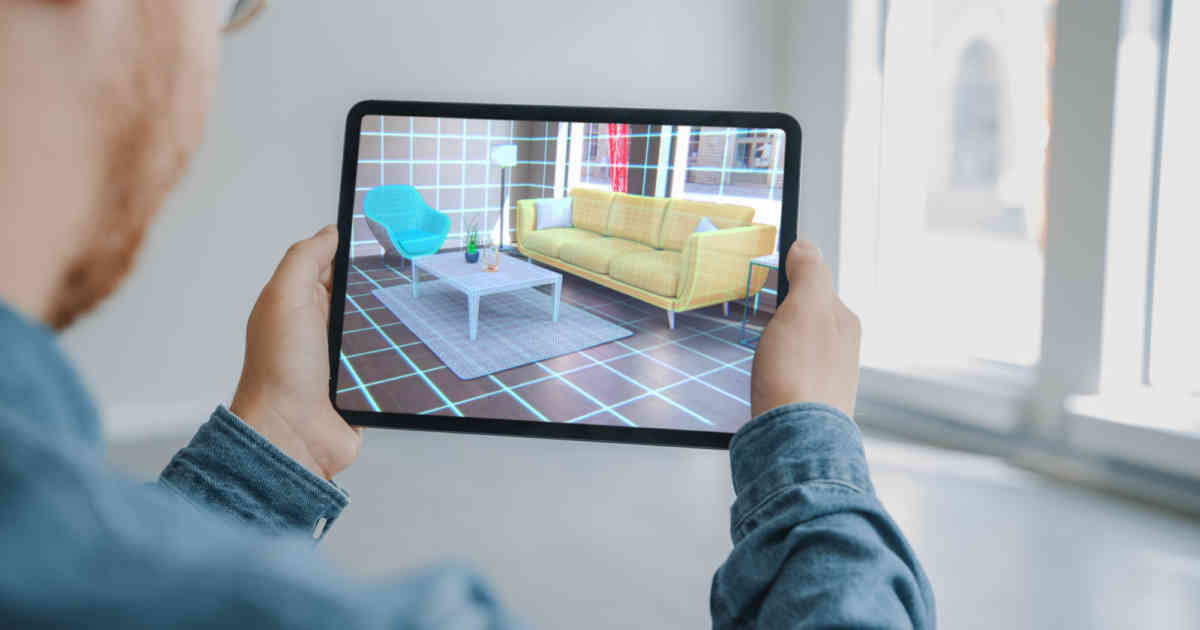
🎯 Objective
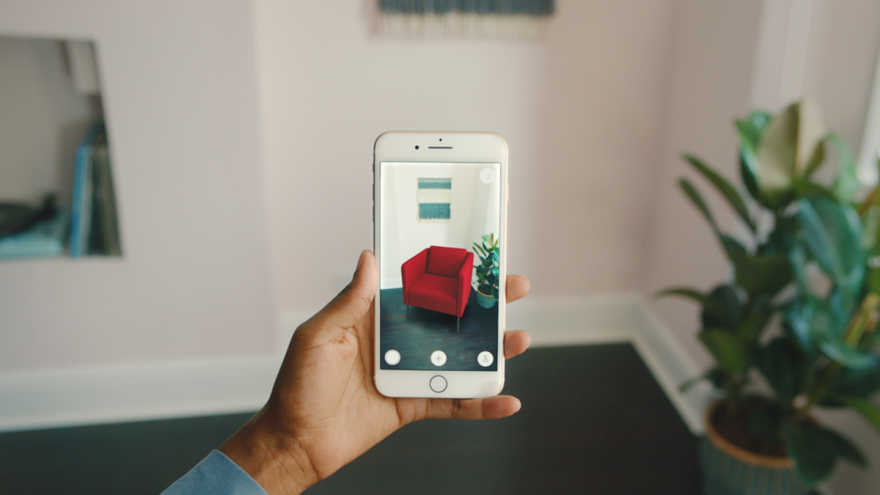
Allow users to select furniture from a catalog and place it virtually in their real-world living room using their phone camera. They can move, rotate, and scale furniture to see how it fits before buying.
🔧 Tech Stack & Tools
- Framework: Unity 3D (cross-platform)
- AR SDK:
- ARCore (Android)
- ARKit (iOS)
- Or use Vuforia (works for both iOS & Android)
- 3D Modeling: Blender, Sketchfab, TurboSquid (free/paid 3D assets)
- Languages: C# (Unity scripting)
- Optional Backend: Firebase (for saving user selections, catalogs)
🏗️ Step-by-Step Development
1. Setup Environment
- Install Unity Hub + Unity 2022+ (with AR modules).
- Install ARCore XR Plugin (for Android) or ARKit XR Plugin (for iOS).
2. Create AR Scene
- Open Unity → Create new 3D project.
- Import ARFoundation package (supports both ARCore + ARKit).
- Setup AR Session Origin and AR Camera in the scene.
- Add Plane Manager → Detects flat surfaces like floor or table.
3. Furniture 3D Models
- Get optimized low-poly furniture models (chairs, sofas, tables, beds).
- Export models in
.fbxor.glb. - Import into Unity → place in a “Furniture Catalog” folder.
4. Place Furniture in AR
- When the user taps on the detected surface, instantiate a 3D model at that position.
- Add gestures for:
- Move (drag on screen)
- Rotate (two-finger rotate)
- Scale (pinch zoom)
5. UI Development
- Add catalog menu (grid view of furniture thumbnails).
- On selection, spawn the chosen model in AR space.
- Buttons: Rotate Left, Rotate Right, Scale Up, Scale Down, Delete.
6. Extra Features (Optional)
- Screenshot button → user can capture & share.
- Save favorite furniture items to wishlist.
- Link to eCommerce API (buy button).
🧩 Sample Unity (C#) Script for Placing Furniture
using UnityEngine;
using UnityEngine.XR.ARFoundation;
using UnityEngine.XR.ARSubsystems;
using System.Collections.Generic;

public class FurniturePlacer : MonoBehaviour
{
    public GameObject furniturePrefab;
    private ARRaycastManager raycastManager;
    private List<ARRaycastHit> hits = new List<ARRaycastHit>();

    void Start()
    {
        raycastManager = GetComponent<ARRaycastManager>();
    }

    void Update()
    {
        if (Input.touchCount > 0)
        {
            Touch touch = Input.GetTouch(0);

            if (raycastManager.Raycast(touch.position, hits, TrackableType.PlaneWithinPolygon))
            {
                Pose hitPose = hits[0].pose;
                Instantiate(furniturePrefab, hitPose.position, hitPose.rotation);
            }
        }
    }
}
👉 This script places the selected furniture model where the user taps on a detected surface.
📦 Deployment
- Build settings → Android/iOS.
- Enable ARCore/ARKit support.
- Test on a real device (not emulator).
- Upload to Play Store / App Store.
✅ End Result: A mobile app where users can scan their room, tap the floor, and drop virtual furniture in real-time to preview how it looks.
Let’s design the UI/UX flow (wireframe) for your AR Furniture Placement App.
🖼️ Wireframe & UI Flow
1. Splash Screen
- App logo + tagline (e.g., “See it before you buy it”).
- Quick loading animation.
2. Home Screen
- Top Navigation Bar → App name/logo.
- Buttons / Tabs:
- 🛋️ Catalog (browse furniture)
- ⭐ Wishlist (saved items)
- ⚙️ Settings
3. Furniture Catalog Screen
- Grid/List view of furniture items (thumbnails + name + price).
- Filters: Category (Sofa, Bed, Table, Chair).
- Search bar 🔍 for quick item lookup.
- Tap item → Opens AR View.
4. AR View Screen (Main Feature)
This is where the magic happens ✨
Layout:
- Camera Feed → Live view of user’s room.
- AR Plane Detection Overlay → Slight grid to show detected surfaces (floor, table).
- Floating Action Controls (Bottom of Screen):
- 📥 Place Item (tap surface to drop selected furniture).
- 🔄 Rotate Left / Right.
- ↔️ Scale Up / Down.
- ❌ Remove Object.
- Top-Right Corner:
- 📷 Screenshot button.
- 🛒 Buy Now (redirect to eCommerce site or checkout).
5. Wishlist / Saved Items
- List of user’s favorited furniture.
- Option to preview again in AR.
6. Settings
- Toggle for measurement units (cm/inch).
- Help & Tutorial (how to use AR).
- App version, contact support.
🎨 Visual Concept (Simple Wireframe Sketch)
-------------------------------------------------
| [App Logo]                              [⚙️] |
-------------------------------------------------
|             FURNITURE CATALOG                  |
|   [ Sofa ]   [ Chair ]   [ Table ]   [ Bed ]   |
|   [ img ]    [ img ]    [ img ]    [ img ]     |
|   Price      Price      Price      Price       |
-------------------------------------------------
| [🔍 Search...]                                |
-------------------------------------------------

AR VIEW SCREEN:
-------------------------------------------------
| [📷]                          [🛒 Buy]       |
-------------------------------------------------
|    CAMERA FEED (Room) + AR plane grid          |
|                                                |
|   [3D Furniture appears here]                  |
-------------------------------------------------
| [📥 Place] [🔄 Rotate] [↔️ Scale] [❌ Delete] |
-------------------------------------------------
🎯 User Flow Summary
- Open App → See Catalog.
- Select Furniture → Camera opens with AR view.
- Scan room → Tap surface → Place furniture.
- Rotate, scale, and adjust position.
- Take screenshot OR Buy Now.
- Save item in wishlist for later.